
The Moveee team
Free coaching · a real route for every ride
Nine times out of ten, a trainer that won't connect isn't broken — it's busy. Bluetooth Low Energy allows exactly one controlling connection to a trainer at a time, and something you've forgotten about is holding it: the Zwift you didn't fully quit, the Wahoo or Tacx app idling on your phone, the watch on your wrist that helpfully auto-paired. Everything else — range, adapters, permissions — is the remaining one in ten. This guide works symptom by symptom, so start from what you're actually seeing.
- Cause #1 by a mile: another app already holds the trainer. Close every training app on every device — including your phone and watch — then wake the trainer and retry.
- Cause #2: radio conditions — distance, USB 3 ports, fan motors and crowded 2.4 GHz Wi-Fi. Move things closer and apart.
- Platform quirks are real: Mac needs Bluetooth permission granted to the browser, Windows lives and dies by adapter quality, Android needs Location permission to scan. iOS can't do browser pairing at all.
First, the one-connection rule
It's worth understanding because it explains most mysteries: a BLE trainer advertises itself only until one app connects, then goes quiet. So when it "isn't there", it usually is there — invisibly attached to something else. Apps rarely announce they've grabbed it, phones reconnect to known devices automatically the moment Bluetooth is on, and some watches pair with trainers as sensors. The fix is boring and universal: close every fitness app on every device in the room, power-cycle the trainer so it drops any lingering bond, and pair again. Do this before anything else on this page.
Work from your symptom
The trainer doesn't show up at all
- Something else is holding it. Close Zwift, the trainer's own app, other browser tabs — and check your PHONE and watch, which grab trainers silently in the background.
- Wake the trainer: plug it in and give the cranks a few turns so it starts advertising.
- Power-cycle it. Ten seconds unplugged clears a stuck Bluetooth state more often than seems reasonable.
- Check you're in Chrome or Edge — Safari and Firefox have no Web Bluetooth, so browser pairing can't work there at all.
It shows up, but pairing fails or hangs
- Remove any old pairing of the trainer from the operating system's own Bluetooth settings — a stale OS-level bond can block a fresh app connection.
- Move the computer within 2–3 metres of the trainer for the pairing handshake, even if you'll ride further away.
- Toggle the computer's Bluetooth off and on, then retry. On desktop machines, try a different USB port for the Bluetooth dongle.
It pairs, then drops mid-ride
- Range and interference, almost always. Shorten the distance and clear the line of sight between computer and trainer.
- Move away from USB 3 ports and hubs — they radiate noise squarely in the 2.4 GHz band Bluetooth uses. A short USB extension cable for a dongle works wonders.
- Your fan's motor and a busy 2.4 GHz Wi-Fi network are the other usual suspects; reposition the fan, or move your Wi-Fi traffic to 5 GHz.
- Stop the phone reconnecting: if the trainer's companion app is on your phone with Bluetooth on, it can steal the connection back mid-ride. Force-quit it.
Connected, but power reads zero or nonsense
- Pedal. Many trainers only report power once the flywheel moves — a zero at standstill is correct.
- Two power sources may be fighting: if you paired both the trainer and separate power pedals, pick one as the power source and unpair the other.
- Wheel-on trainer? Do a spindown calibration after ~10 minutes riding, and check tyre pressure and roller tension — a slipping tyre reads as chaos.
- If power is frozen at one number, disconnect and re-pair; a half-dead connection often keeps the last value on screen.
Platform-specific quirks
Each operating system has one gotcha that costs people an evening. Here they are up front:
Mac
macOS asks each app — including the browser — for Bluetooth permission. If pairing silently finds nothing, check System Settings → Privacy & Security → Bluetooth and make sure Chrome or Edge is allowed. A first-ever pairing attempt should trigger the prompt; a long-ago 'Don't Allow' click is remembered.
Windows
The variable here is the Bluetooth adapter itself. Built-in radios on older desktops and budget laptops are weak; a ~€15 BLE 5 USB dongle is the single best fix for flaky Windows pairing. Keep it on a short extension cable away from USB 3 ports, and let Windows finish installing its driver before you retry.
Android
A quirk of the platform: Bluetooth scanning is gated behind Location permission (because scanning can reveal where you are). If the chooser stays empty, check the browser has Location/Nearby-devices permission and that Location is switched on. Nothing is tracking your ride to your living room — it's just how Android gates BLE scans.
iPhone / iPad
The honest one: no browser on iOS or iPadOS supports Web Bluetooth — Safari doesn't, and every other iOS browser is Safari underneath. Browser-based pairing is impossible there, full stop. Use a Mac, Windows machine, Android device or Chromebook.
Calibration is not connection
A surprisingly common mix-up: a failed spindown doesn't mean pairing is broken, and a solid connection doesn't mean the numbers are right. Connection is the radio link; calibration is the trainer knowing its own friction. If the trainer is paired and reporting something, the link is fine — a wandering or implausible power number on a wheel-on trainer is a calibration and tyre-tension problem, handled by a spindown after ten minutes of riding. (Direct-drive trainers largely calibrate themselves.) We go deeper on what the numbers should look like in how accurate is your smart trainer's power?.
When it really is the trainer
Firmware is years old
Bluetooth fixes ship in firmware constantly. Open the maker's own app (this is the one job it's genuinely for), update, then close it fully before pairing elsewhere.
It's in an ANT+-only or 'dual pairing' mode
Some trainers have settings that limit Bluetooth connections or prioritise ANT+. Check the trainer app's connection settings — you want Bluetooth (FTMS) enabled and free.
It connects fine to a phone but not the computer
That points at the computer's Bluetooth adapter, not the trainer. On Windows, that's the dongle fix above; on any platform, it rules the trainer out.
A clean-room test that settles it
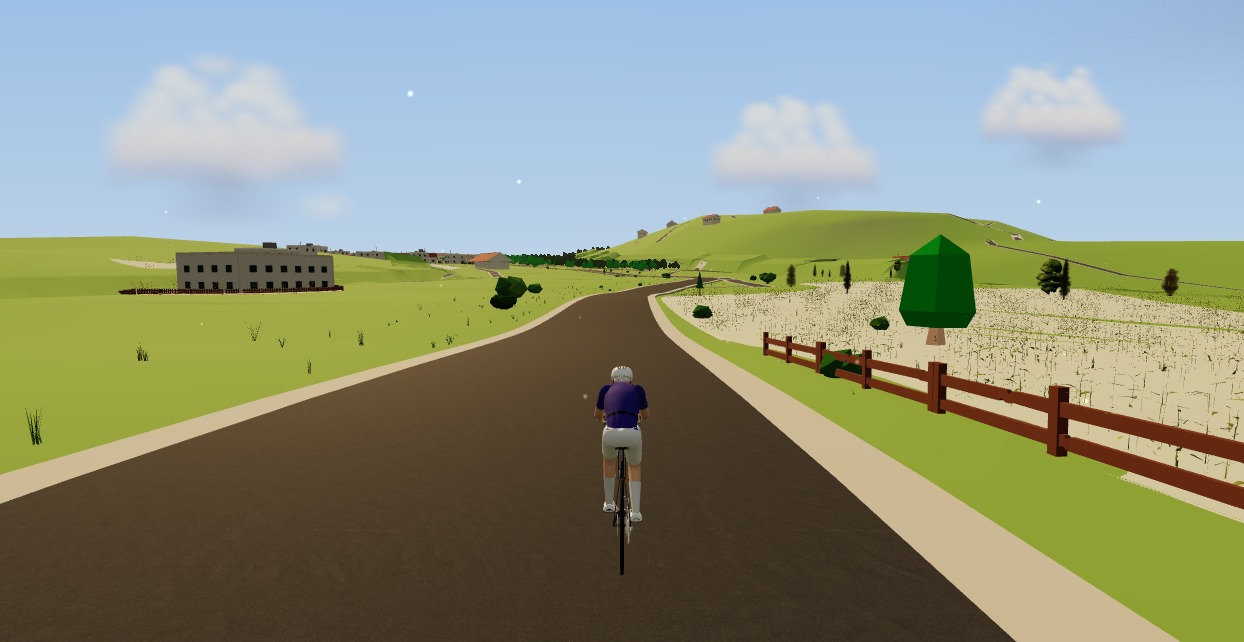
If you're still stuck, run the minimal experiment: trainer powered on, every other device's Bluetooth off, one computer, one Chromium browser tab. In Moveee Indoor — which runs in the browser with nothing installed, so there's no app-side state to go stale — click Pair and see whether the trainer appears in the browser's chooser. If it appears there, your trainer and your computer are fine, and the culprit is whatever you switched off; turn things back on one at a time until it breaks again. If it doesn't appear even then, it's firmware or the computer's Bluetooth adapter — work the platform notes above. Either way you've turned a mystery into a short list, and the full pairing walkthrough in connecting a smart trainer in the browser takes it from there.
Sources 6
Where this article summarises a study, the study itself is linked — not a write-up of it.
- 1 Bluetooth Core Specification 5.4 · Bluetooth SIG · 2023
- 2 Fitness Machine Service 1.0 (FTMS) specification · Bluetooth SIG · 2017
- 3 USB 3.0 Radio Frequency Interference Impact on 2.4 GHz Wireless Devices (Intel white paper 327216-001) · USB Implementers Forum · 2012
- 4 Web Bluetooth API — browser compatibility · MDN Web Docs (Mozilla) · 2025
- 5 Bluetooth permissions (Android developer documentation) · Android Developers · 2025
- 6 Control access to Bluetooth on Mac (macOS User Guide) · Apple Support · 2025
Your own roads, indoors, in a browser tab
Moveee Indoor pairs your smart trainer over Bluetooth and rebuilds a route you have saved as a 3D road — real gradients, ERG for the intervals, and the ride saved with full power data. Nothing to install. Free while it is in alpha.
Start an indoor rideKeep reading

How to connect a smart trainer to your browser with Web Bluetooth
Your browser can talk to your smart trainer directly — no app, no dongle, no ANT+ stick. Here's how Web Bluetooth pairing works, what it supports, and how to fix it when it won't connect.

Indoor cycling on an Android tablet or phone (in the browser)
You don't need a laptop or an app-store download to train indoors. Here's how to run a full indoor cycling app on an Android tablet or phone, straight from Chrome — pairing your smart trainer over Bluetooth, holding ERG targets and saving to Strava.

Zwift on iPad? A browser alternative for tablets that actually works
Searching for Zwift on iPad — or a lighter tablet alternative? Here's the honest state of indoor cycling on tablets in 2026: what works on an Android tablet in the browser, the real iPad Bluetooth catch, and the simplest setups that just work.

A free app for Saris and JetBlack trainers (in your browser)
A Saris H3 or a JetBlack Volt doesn't need a subscription to earn its keep — both brands speak standard Bluetooth FTMS, so a browser tab can control resistance, hold ERG targets and record the ride. Model-by-model support, pairing steps, and the honest caveats for older wheel-on units.
The best indoor cycling app for Mac (no download, runs in your browser)
Looking for an indoor cycling app for Mac that doesn't need a download? macOS runs a full smart-trainer session straight from a browser tab — pairing, ERG, real 3D roads and a Strava upload. Here's how, and the one thing to watch on Apple Silicon.
How to choose a smart trainer (without overspending)
Direct-drive or wheel-on, ERG or not, which protocols matter and what accuracy you actually need. A plain-English buying guide for your first — or next — smart trainer.

A free app for the Zwift Hub and Zwift Ride (yes, without Zwift)
Zwift's own trainers speak the same standard Bluetooth as everyone else's — which means a Zwift Hub or Zwift Ride works perfectly well without a Zwift subscription. How to pair Zwift hardware with a free browser app, what works (ERG, resistance, power), and the honest caveats around buttons and firmware.
Indoor cycling on any device: how Moveee Indoor runs in the browser (even on a Mac)
Mac, Windows, Linux, a Chromebook or an Android tablet — if it runs Chrome or Edge, it can run a full trainer session. Here's how one browser app rides on all of them, and the one gap (iOS).

An indoor cycling app for Windows with nothing to install
No admin rights, no 12 GB download, no launcher updating itself before every session. Here's how to run a full indoor cycling app on Windows with nothing to install — a browser tab, your smart trainer, and a real 3D road.

How to record an indoor ride to Strava (without Zwift)
An indoor ride should count. Here's how to record an indoor ride to Strava with full power, cadence and heart-rate data — without Zwift — using a free browser app that saves the ride even if your connection drops.
Turn a dumb trainer smart with a power meter and your browser
You don't need to buy a smart trainer to train with power indoors. Here's how to turn a dumb trainer smart with a power meter (or speed sensor) and a free browser app — including how virtual power fills the gap if you have neither.

Zone 2 training on a smart trainer: how to actually stay in zone
Everyone agrees Zone 2 builds the engine — and almost nobody actually rides it, because outdoors every junction, hill and ego bump pulls you out of zone. On a smart trainer with ERG mode the discipline problem disappears. How to set the right watts, manage drift, and make 90 steady minutes genuinely bearable.